
WordPress theme development is the process of building the presentation layer of a WordPress website. A theme controls how content is structured and displayed, including layouts, typography, colors, navigation, post templates, archives, headers, footers, and other visual elements.
Custom theme development goes beyond installing a theme or arranging pages with a page builder.
A developer should understand theme structure, template selection, asset loading, and the boundary between presentation and plugin functionality.
In this guide, you will learn the foundations of WordPress theme development and build the structure of a simple Career Blog Theme while understanding both modern block themes and traditional classic themes.
What Is WordPress Theme Development?
A WordPress theme is a collection of files that determines how WordPress content appears on the frontend. The content itself generally remains stored in WordPress; the theme decides how that content is presented.
- page layouts
- blog post layouts
- typography
- colors
- headers and footers
- navigation
- archive pages
- featured images
- reusable sections
- responsive behavior
- block styles
Theme Development vs Site Building
Using WordPress does not automatically mean you are doing theme development. A site builder may install an existing theme, use the Site Editor, configure blocks, use Elementor or another page builder, or change fonts and colors. A theme developer goes deeper.
- create template files
- configure theme.json
- build reusable template parts
- create custom layouts
- register theme features
- load CSS and JavaScript
- use WordPress APIs
- debug theme behavior
- work with the template hierarchy
- optimize responsiveness and accessibility
These are related but different skills.
Theme vs Plugin: What Should Go Where?
One of the most important WordPress development principles is separating presentation from functionality.
| Theme | Plugin |
| Controls presentation | Adds functionality |
| Handles layouts | Adds features |
| Defines templates | Adds business logic |
| Controls styling | Adds custom behavior |
| Changes site appearance | Extends WordPress functionality |
For example, the layout of an article belongs naturally in the theme. A booking system, membership feature, payment integration, or reusable business feature belongs more naturally in a plugin. If you want to learn the functionality side as well, continue with our WordPress plugin development guide after completing this theme tutorial.
Block Themes vs Classic Themes
Modern WordPress development includes two important theme models. You should understand both.
What Is a Block Theme?
A block theme is built primarily with blocks and HTML-based template files. It allows users to edit areas such as the header, footer, templates, navigation, archive layouts, and global styles through the WordPress Site Editor. For a deeper technical reference, see the WordPress Theme Handbook, which covers both block and classic theme development.
- HTML template files
- blocks
- template parts
- patterns
- theme.json
- CSS
- optional PHP
- optional JavaScript
What Is a Classic Theme?
A classic theme uses the traditional WordPress theme architecture. It commonly relies on PHP templates, WordPress template tags, functions.php, hooks, CSS, JavaScript, and the template hierarchy.
- Index.php
- Single.php
- Page.php
- Archive.php
- Header.php
- Footer.php
Many existing business and client websites still use classic or hybrid theme architectures, so this knowledge remains useful.
Which One Should Beginners Learn?
Learn the basic concepts of both.
| Goal | Useful Knowledge |
| Build modern Site Editor themes | Block themes |
| Maintain existing client websites | Classic themes |
| Learn PHP templates deeply | Classic themes |
| Build modern visual theme systems | Block themes |
| Work professionally across WordPress projects | Both |
What You Need Before You Start
- a local WordPress installation
- a code editor
- basic HTML knowledge
- basic CSS knowledge
- basic PHP understanding
- basic JavaScript knowledge
- familiarity with WordPress Admin
- browser developer tools
Do not build your first theme directly on a production website. Use a local or staging environment where mistakes cannot take down a live business site. If you are still deciding what to learn and in what order, start with our WordPress developer roadmap. WordPress also recommends using a separate development environment when building or testing themes.
WordPress Theme Folder Structure Explained
A modern block theme might look like this:
career-blog-theme/
├── style.css
├── functions.php
├── theme.json
├── templates/
│ ├── index.html
│ ├── single.html
│ └── page.html
├── parts/
│ ├── header.html
│ └── footer.html
├── patterns/
├── assets/
└── screenshot.png
| File or Folder | Purpose |
| style.css | Theme information and styles |
| theme.json | Global theme settings and styles |
| templates/ | Page-level templates |
| parts/ | Reusable template sections |
| functions.php | PHP setup and theme functionality |
| patterns/ | Reusable block patterns |
| assets/ | CSS, JavaScript, images or fonts |
| screenshot.png | Theme preview image |
Important: theme.json is not technically required for a block theme, but it is the standard and recommended way to configure many global settings and styles in modern WordPress themes.
A traditional classic theme might instead use:
career-blog-theme/
├── style.css
├── index.php
├── functions.php
├── header.php
├── footer.php
├── single.php
├── page.php
├── archive.php
└── assets/
You do not need every possible template when you are starting. Build the minimum working structure first, then expand it.
Build Your First WordPress Theme
Our example project will be a simple Career Blog Theme. It should eventually support a site header, navigation, blog listing, individual article pages, standard pages, archive pages, footer, and responsive design. The purpose is not to create a commercially polished theme. The purpose is to understand how the major theme pieces connect.
Step 1: Create the Theme Folder
wp-content/themes/
Create a folder named:
career-blog-theme
For a minimal block theme, start with:
career-blog-theme/
├── style.css
└── templates/
└── index.html
You can expand the structure after activation.
Step 2: Add Theme Information in style.css
Create style.css in the root theme folder and add a theme header:
/*
Theme Name: Career Blog Theme
Author: Your Name
Description: A simple custom theme for career and technology blogs.
Version: 1.0.0
Text Domain: career-blog-theme
*/
This metadata tells WordPress the theme name, author, description, version, and text domain. After creating the required theme structure, go to Appearance → Themes and confirm that WordPress recognizes the theme.
Step 3: Understand theme.json
theme.json is an important configuration file in modern WordPress theme development. It can control colors, typography, spacing, layout widths, block settings, and editor options.
{
“version”: 3,
“settings”: {
“layout”: {
“contentSize”: “760px”,
“wideSize”: “1200px”
}
},
“styles”: {
“typography”: {
“fontSize”: “16px”,
“lineHeight”: “1.6”
}
}
}
Why theme.json Matters
Without a consistent design system, different parts of a website can easily use different colors, spacing, font sizes, widths, and block settings. theme.json gives the theme a central place to define many of these rules, making the theme easier to maintain and the editor experience more consistent.
Step 4: Create Your Main Template
Inside templates/, create index.html. The Index template acts as a fallback when WordPress cannot find a more specific template. A block template is composed of WordPress block markup rather than a traditional PHP layout.
- header
- query loop
- article listing
- pagination
- footer
Keep the first template simple and confirm it loads before adding complexity.
Step 5: Create Template Parts
Some sections appear across multiple templates, especially the header and footer. Instead of recreating these sections inside every template, create reusable template parts.
parts/
├── header.html
└── footer.html
Classic themes use a similar reuse principle with functions such as get_header() and get_footer().
Step 6: Understand WordPress Template Hierarchy
WordPress does not use one template for every page. It selects templates based on the type of content being requested and falls back to more general templates when needed. You can also review the official WordPress Template Hierarchy documentation to see how WordPress chooses templates for different page types.
| Page Type | Possible Template |
| Single article | single.html |
| Standard page | page.html |
| Archive | archive.html |
| Search | search.html |
| 404 | 404.html |
| Fallback | index.html |
If a more specific template does not exist, WordPress moves through its template hierarchy until it finds an appropriate fallback. This is one of the most important concepts in theme development.
Step 7: Use functions.php Carefully
Themes can include a functions.php file for theme-related setup such as registering theme support, loading assets, adding hooks, registering menus in classic themes, and other theme-specific configuration.
Do not treat functions.php as a dumping ground for every custom feature. If functionality should remain when the user changes themes, it probably belongs in a plugin.
Step 8: Load CSS and JavaScript Correctly
Avoid hardcoding stylesheet and script tags directly into templates when WordPress provides an asset-loading system. A classic example for CSS is:
function career_blog_assets() {
wp_enqueue_style(
‘career-blog-style’,
get_stylesheet_uri(),
array(),
wp_get_theme()->get( ‘Version’ )
);
}
add_action( ‘wp_enqueue_scripts’, ‘career_blog_assets’ );
Use wp_enqueue_script() for JavaScript. Enqueuing helps WordPress manage dependencies, versions, and loading consistently.
Step 9: Build Responsive Styles
Test the theme on mobile, tablet, laptop, and wider screens.
- content width
- headings
- navigation
- images
- tables
- buttons
- spacing
- article readability
Use modern CSS tools such as Flexbox, Grid, media queries, and responsive units. Avoid fixed widths everywhere.
Step 10: Add Navigation
Block themes can use the Navigation block, while classic themes may register menu locations in PHP. In either case, navigation should be readable, mobile-friendly, and keyboard accessible.
Step 11: Create the Single Post Layout
A single-post layout may include the title, author, date, featured image, content, category, related navigation, and footer.
Keep tables, code blocks, images, and lists responsive, and let the article remain the visual focus.
Step 12: Create the Blog and Archive Layout
- article cards
- featured images
- titles
- excerpts
- publication dates
- categories
- pagination
Keep card structure consistent and archives easy to browse.
Step 13: Test Your Theme
Core Pages
- homepage
- blog page
- single post
- regular page
- archive
- category
- search
- 404 page
Responsive Testing
- mobile
- tablet
- desktop
Technical Testing
- PHP warnings
- JavaScript errors
- missing assets
- broken image paths
- console errors
- unexpected layout shifts
Content Testing
- very long headings
- posts without featured images
- large images
- lists
- tables
- long URLs
- empty categories
Test beyond ideal demo content.
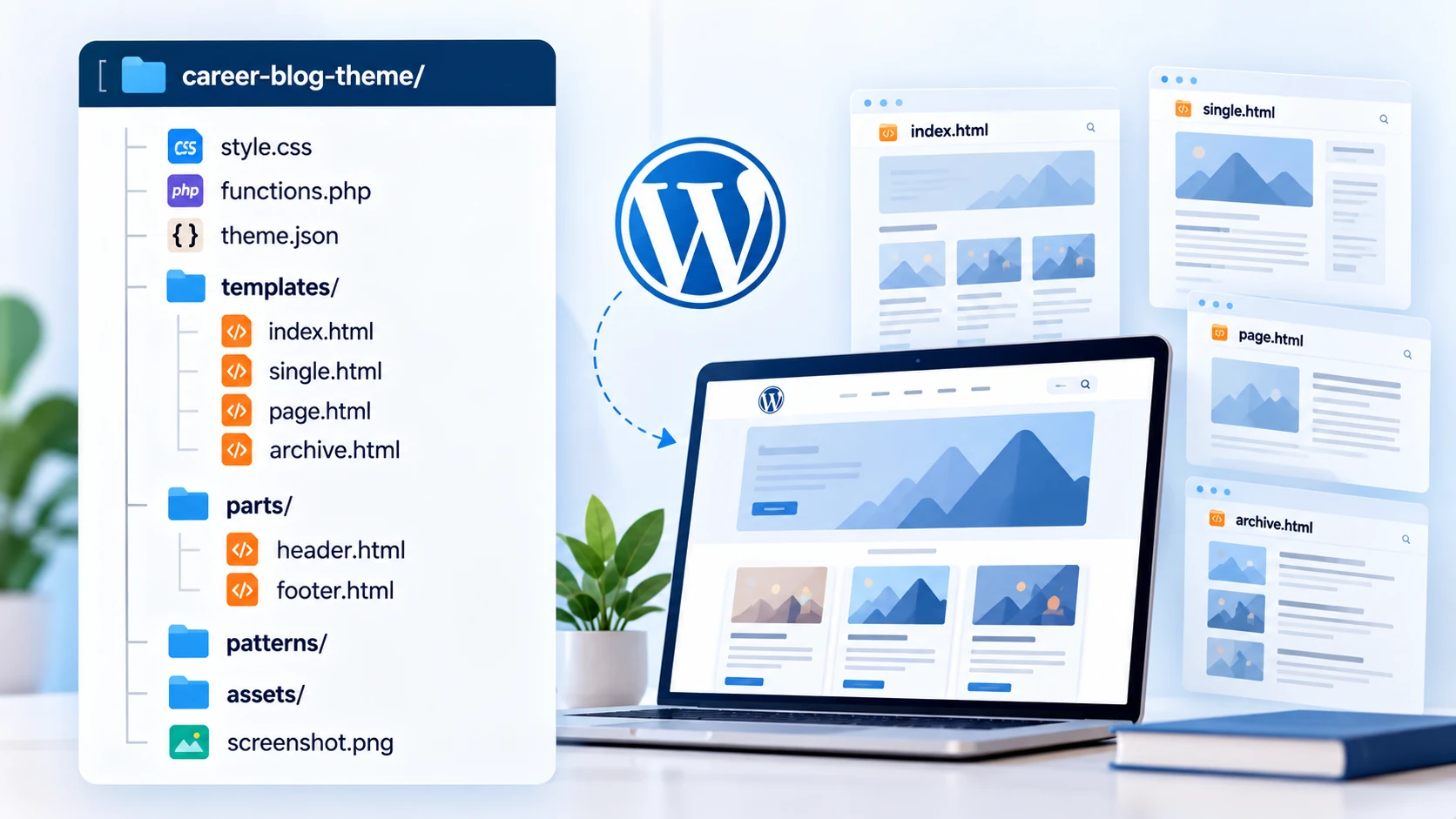
Complete Beginner Career Blog Theme Structure
After completing the tutorial steps, a practical beginner structure can look like this:
career-blog-theme/
├── style.css
├── theme.json
├── functions.php
├── templates/
│ ├── index.html
│ ├── single.html
│ ├── page.html
│ └── archive.html
├── parts/
│ ├── header.html
│ └── footer.html
└── assets/
This is a learning structure, not a mandatory architecture.
WordPress Theme Development Best Practices
- Develop locally
- Use Git
- Use semantic HTML
- Enqueue assets correctly
- Escape dynamic output
- Use WordPress APIs
- Avoid modifying WordPress core
- Separate functionality from presentation
- Keep templates focused
- Reuse template parts
- Test responsive layouts
- Consider accessibility
- Document unusual decisions
Common WordPress Theme Development Mistakes
Developing Directly on a Live Site
A PHP error or broken template can affect the entire website. Use local or staging environments.
Putting Plugin Functionality in the Theme
Business-critical functionality should not disappear because a user changes themes. Put portable functionality in plugins.
Hardcoding URLs
Avoid hardcoding domain names and asset paths when WordPress provides functions for resolving them.
Loading Assets Incorrectly
Use WordPress’s enqueue system instead of manually injecting assets everywhere.
Ignoring Block Themes
Learning only older PHP tutorials can leave gaps in modern WordPress knowledge.
Ignoring Classic Themes
Developers working on existing websites will still encounter classic architecture, so understand both.
Editing Parent Themes Directly
If you modify an existing third-party theme directly, an update may overwrite your changes. Use a child theme when appropriate.
Ignoring Accessibility
Think about semantic headings, keyboard navigation, readable contrast, link meaning, form labels, and image alternatives.
Copying Old Tutorials Blindly
WordPress evolves. Use official WordPress documentation to verify technical details before relying on old examples.
Child Theme vs Custom Theme
Use a Child Theme When
- an existing parent theme already fits most requirements
- you need controlled style or template changes
- you want to preserve parent-theme updates
Build a Custom Theme When
- You need complete design control
- You need custom architecture
- You need your own template system
- The project requires a theme built specifically for its needs
Do not build a full custom theme when a small child-theme customization solves the requirement. Likewise, do not keep stacking overrides onto an unsuitable parent theme when the project clearly needs custom architecture.
How to Debug a WordPress Theme
Inspect the Browser
- HTML structure
- CSS rules
- Responsive behavior
- JavaScript console
- Network requests
Check WordPress Debugging
In your development environment, use WordPress debugging tools and logs to identify PHP problems rather than exposing raw errors to live visitors.
Verify the Template
- Which template should WordPress be using?
- Does that template exist?
- Is another template taking priority?
- Is the expected template part included?
Check Asset Paths
Missing CSS, JavaScript, fonts, or images often come from incorrect paths.
Disable Potential Conflicts
If the problem appears only with a particular plugin active, isolate that interaction before changing random theme code. Debug one assumption at a time.
Turn Your First Theme Into a Portfolio Project
Version 1
- Basic templates
- Header
- Footer
- Blog listing
Version 2
- Custom homepage
- Responsive design
- Better typography
- Improved navigation
Version 3
- Theme.json design system
- Custom patterns
- Improved archives
- Related-content layout
Version 4
- Accessibility improvements
- Performance optimization
- Better image handling
- Documentation
Version 5
- Git repository
- Screenshots
- Setup instructions
- Demo content
- Project case study
This progression turns the tutorial into a stronger portfolio project.
What to Learn After Theme Development
- WordPress plugin development
- Advanced PHP
- Hooks
- Block development
- REST API
- Accessibility
- Performance optimization
- WooCommerce customization
- Git workflows
If you want the complete learning sequence, use our WordPress developer roadmap. If you want to move from presentation into custom functionality, continue with WordPress plugin development. Developers interested in ecommerce can later explore our WooCommerce tutorial for beginners.
WordPress Theme Development Checklist
1: Local WordPress environment created
2: Theme folder created
3: style.css configured
4: Theme recognized by WordPress
5: theme.json configured where appropriate
6: Main template created
7: Header and footer created
8: Single post layout works
9: Page layout works
10: Archive layout works
11: Navigation works
12: CSS loads correctly
13: JavaScript loads correctly
14: Mobile layout tested
15: Tablet layout tested
16: Images remain responsive
17: Accessibility basics reviewed
18: PHP errors checked
19: Browser console checked
20: Git repository created
Frequently Asked Questions
Is WordPress theme development difficult?
Basic theme development is approachable if you already understand HTML, CSS, WordPress fundamentals, and some PHP. Advanced themes can involve JavaScript, blocks, APIs, accessibility, complex design systems, ecommerce, and performance optimization. Start with a simple theme before attempting a large commercial project.
Do I need PHP for WordPress theme development?
PHP remains important, especially when working with classic themes and many existing WordPress projects. Modern block themes rely more heavily on HTML block templates and theme.json, but PHP knowledge is still valuable for broader professional WordPress development.
What is the difference between a block theme and a classic theme?
Block themes primarily use block-based HTML templates and support editing site areas through the Site Editor. Classic themes primarily use PHP template files together with WordPress functions, hooks, CSS, and JavaScript. Professional developers benefit from understanding both.
What files are required for a WordPress theme?
The exact requirements depend on the theme type. A minimal block theme can be recognized with a valid style.css and templates/index.html structure. Classic themes use traditional PHP templates such as index.php together with the theme stylesheet. Add other templates as the theme grows.
What is theme.json?
theme.json is a WordPress theme configuration file used for global settings and styles, including typography, colors, spacing, layout, and block controls. It is particularly important in modern block-theme development, although it is not technically required for a minimal block theme.
Should beginners learn block themes or classic themes?
Learn both at a conceptual level. Start building with the approach most relevant to your target projects, but avoid becoming unable to understand the other architecture.
Can I build a WordPress theme without a page builder?
Yes. Custom WordPress themes can be built directly using WordPress theme files, blocks, HTML, CSS, PHP, JavaScript, and WordPress APIs. A page builder is not a requirement for theme development.
What is the WordPress template hierarchy?
The template hierarchy is the system WordPress uses to determine which theme template should render a requested page. If a specific template is unavailable, WordPress searches for another appropriate template until it reaches a fallback such as the Index template.
Should I use a child theme or build a custom theme?
Use a child theme when an existing parent theme already provides most of what you need and you only need controlled customizations. Build a custom theme when the project requires its own design system, templates, architecture, and full control.
Final Thoughts
Think of a WordPress theme as a structured system: templates display content, template parts reduce duplication, theme.json can define global design rules, and the template hierarchy determines which layout WordPress uses.
Start simple, then test with real content, multiple screen sizes, archives, and different user flows. The goal is a theme you can understand, debug, maintain, and improve.
