
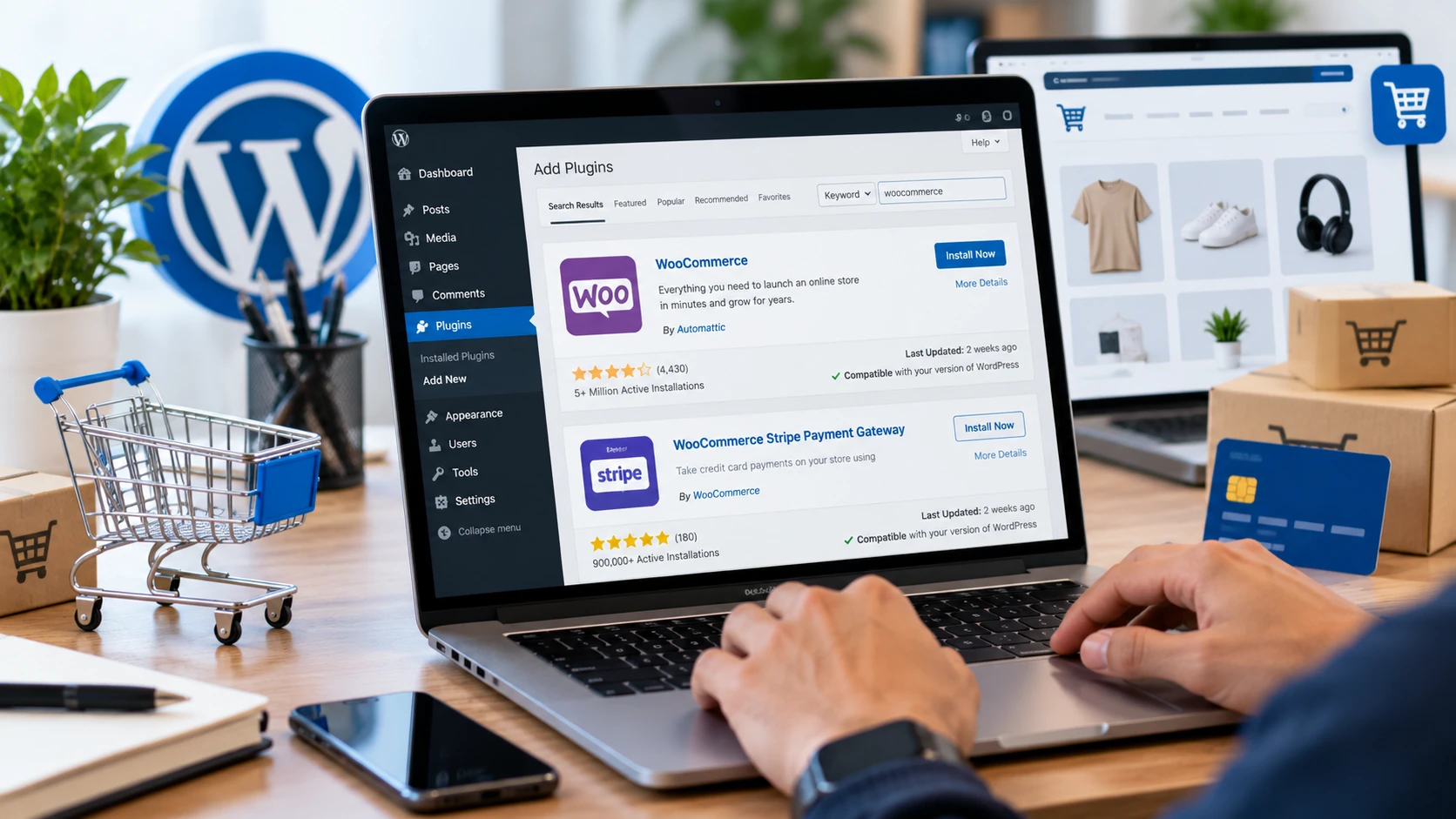
WooCommerce turns a WordPress site into an ecommerce store, but launching a reliable store involves more than installing a plugin. You need correct product data, payment methods that work in your country, tax and shipping rules, customer emails, privacy settings, backups, security, and a tested checkout flow.
This WooCommerce tutorial for beginners walks you through the essential store setup process, including products, payments, shipping, taxes, and checkout settings. Before launching your store, review each setting carefully and place a test order to make sure the complete buying process works correctly.
WooCommerce itself is open-source software, but running a store is not automatically free. Hosting, a domain, payment processing, premium themes or extensions, development, email services, shipping tools, and other operating costs can apply.
What Is WooCommerce?
WooCommerce is an open-source ecommerce platform built for WordPress. It adds product, cart, checkout, order, payment, shipping, tax, customer-account, and store-management capabilities that can be extended through themes, plugins, integrations, and custom development.
It can support physical products, digital products, variable products, and other selling models depending on configuration and extensions. Avoid relying on a fixed claim such as “WooCommerce powers 25% of all stores” unless you cite a current dataset and methodology; ecommerce technology market-share estimates change over time.
WooCommerce Tutorial for Beginners: What to Do Before Installation
Prepare the foundation before configuring products. At minimum, decide:
- What you sell: physical goods, downloads, services, subscriptions, bookings, or another model.
- Where the business is based and where it is allowed to sell or ship.
- Which currency customers will pay in.
- How tax obligations will be determined for your business and customer locations.
- Which payment providers are available to your business and country.
- How shipping rates, zones, fulfillment, returns, and local pickup will work.
- Who will maintain WordPress, WooCommerce, extensions, backups, and security.
Use a hosting environment that meets current WordPress and WooCommerce requirements. WooCommerce currently recommends modern supported software, including PHP 8.3 or greater for optimal performance and security, while individual WooCommerce releases have documented minimum requirements. Check the live requirements before choosing or upgrading hosting.
Step 1: Install WordPress and Prepare the Site
WooCommerce runs on WordPress, so start with a working WordPress installation on HTTPS. Many hosts provide automated WordPress installation, but the hosting brand is less important than reliability, backups, security, performance, support, and compatibility with your expected store traffic.
Before taking orders, use a strong administrator password, limit unnecessary administrator accounts, keep WordPress and plugins updated, configure backups, and confirm HTTPS works across the site.
Step 2: Install WooCommerce
In WordPress admin, go to Plugins > Add New Plugin, search for WooCommerce by Automattic, install it, and activate it. You can also obtain WooCommerce through official WordPress/WooCommerce distribution channels.
After activation, WooCommerce presents onboarding and a store setup checklist. The current workflow asks about your store and then guides you through products, payments, customization, tax, shipping where relevant, and launch preparation.
Step 3: Complete the Store Setup
In this WooCommerce Tutorial for Beginners, one of the most important steps is entering accurate store information rather than simply clicking through the default options. Your store address, selling locations, shipping destinations, and currency can affect later configuration.
WooCommerce may recommend optional features during onboarding. Review them rather than installing everything automatically. Every additional extension creates another dependency to update, secure, test, and troubleshoot.
Step 4: Configure Essential WooCommerce Settings
| Settings Area | What to Review |
| General | Store address, selling/shipping locations, currency, taxes and coupons |
| Products | Shop behavior, measurements, reviews, inventory and downloadable-product settings |
| Tax | Tax display/calculation settings and rates if taxes are enabled |
| Shipping | Zones, destinations and methods |
| Payments | Available gateways and offline methods |
| Accounts & Privacy | Guest checkout, account behavior, privacy and retention |
| Emails | Sender details and transactional email templates |
| Site visibility | Coming-soon/live state during setup |
| Advanced | Pages, endpoints, REST/webhook and other advanced settings as needed |
The exact tabs can change when extensions or custom code add settings.
Step 5: Add Your First Product
WooCommerce can create a product with minimal information, but a real store should define enough data for customers, fulfillment, tax, inventory, and search.
- Clear product name and useful description.
- Regular price and sale price where applicable.
- Product image and relevant gallery images.
- SKU and inventory settings if you track stock.
- Category and useful attributes.
- Weight and dimensions when shipping calculations need them.
- Tax status/class according to your configuration.
- Shipping class if your shipping rules use one.
- Catalog visibility and purchase settings.
Simple Products
Use a simple product when the customer buys one defined item without selectable variations. A physical book with one format or a single downloadable file can be modeled this way depending on the product settings.
Variable Products
Use a variable product when customers choose variations such as size or color and those variations need their own price, stock, SKU, image, or other data. Create attributes first, mark the relevant attributes for variations, generate or add variations, then review each variation rather than assuming inherited values are correct.
Step 6: Configure Payments
Go to WooCommerce > Settings > Payments and review the methods available for your store. Provider availability varies by country and business eligibility, so a tutorial should not promise that Stripe, PayPal, or another gateway is available everywhere.
WooCommerce supports offline methods such as direct bank transfer and cash on delivery, while online gateways are provided through payment integrations. Online gateways may charge transaction or service fees even when the WooCommerce plugin itself is free.
Before launch, use the gateway’s supported test/sandbox mode where available. Verify successful payment, failed payment, cancelled payment, order status, confirmation emails, refunds where relevant, and the customer’s return to your store.
For example, the official Stripe extension documentation describes cards, express checkout and supported local payment methods for eligible Stripe accounts.
Step 7: Configure Shipping Zones and Methods
Shipping should reflect where you actually deliver. Create shipping zones for geographic areas and assign methods to each zone. Built-in/common approaches include flat rate, free shipping, and local pickup; carrier-calculated rates may require an extension or service.
Do not assume “free shipping above X always increases average order value.” Treat thresholds as a business decision and measure their effect on margin and conversion.
- Confirm every target customer address matches the intended zone.
- Test addresses near zone boundaries.
- Verify rates for light, heavy, and mixed carts.
- Check free-shipping conditions and coupon interactions.
- Confirm local pickup instructions and taxes if applicable.
Step 8: Configure Taxes Carefully
WooCommerce can calculate and display tax according to the configuration you provide, and automated tax services may be available. The software does not determine your legal tax obligations for you.
Tax/VAT/GST obligations depend on jurisdiction, business structure, nexus or registration rules, product type, customer location, and other factors. Get qualified tax/accounting advice for what you must collect, file, or remit. Then configure WooCommerce to implement that decision.
Test whether catalog prices and checkout totals display tax as intended, whether shipping is taxable where required, and whether invoices/order emails show the expected amounts.
Step 9: Configure Accounts, Privacy, and Emails
Decide whether guest checkout is allowed, when customers can create accounts, and what data you retain. Review your privacy policy and any consent requirements that apply to your business.
Transactional emails are part of the buying experience. Test new-order, processing/completed order, failed-order, refund, account, and password-reset emails relevant to your configuration. Confirm sender identity and deliverability rather than assuming WordPress email works reliably on every host.
Do You Need Essential WooCommerce Plugins?
There is no universal list of essential plugins. Install an extension only when the store has a defined requirement that WooCommerce or your existing stack does not meet.
| Need | Possible Extension Category | Question Before Installing |
| Online payments | Payment gateway | Is it supported for my country, currency and business? |
| Wishlist | Wishlist extension | Does customer behavior justify this feature? |
| PDF invoices | Invoice/document extension | Is it legally/operationally required and maintained? |
| Email marketing | Marketing integration | Do consent, synchronization and automation requirements fit? |
| Carrier rates | Shipping integration | Does it support my carrier, origin, destinations and package rules? |
Before installing any plugin, review compatibility with your current WordPress/WooCommerce versions, update history, support, privacy implications, pricing, and whether it duplicates another plugin.
Step 10: Design the Store for Buying, Not Just Appearance
Choose a theme that is actively maintained and compatible with WooCommerce. Prioritize readable product information, obvious calls to action, usable navigation, mobile checkout, accessible controls, and performance.
- Keep product titles, prices, variation choices, stock messages, and add-to-cart actions easy to understand.
- Use useful product photography and descriptive alt text rather than keyword stuffing.
- Make shipping, returns, contact, privacy, and terms information easy to find.
- Check the cart and checkout on mobile widths.
- Do not add popups or visual effects that interfere with purchasing.
Step 11: Test a Complete Order Before Launch
No WooCommerce Tutorial for Beginners is complete without testing an actual order before launch. Test the complete customer journey, including the product page, cart, checkout, payment process, order confirmation, and customer emails—not just the homepage.
| Test | Verify |
| Product | Price, variation, stock, image and tax behavior |
| Cart | Quantity changes, coupons, shipping estimate and totals |
| Checkout | Required fields, validation, payment and error messages |
| Payment | Success, failure/cancellation and order status |
| Shipping | Correct zone and method for representative addresses |
| Tax | Expected calculation and display |
| Customer and store notifications arrive correctly | |
| Order admin | Items, addresses, payment, notes and fulfillment data are correct |
| Mobile | Product, cart and checkout are usable on a small screen |
Step 12: Launch and Maintain the Store
Launching is the beginning of store operations. Keep backups, WordPress, WooCommerce, themes, and extensions maintained. Test significant updates in a staging environment when possible, especially payment and checkout changes.
- Monitor failed orders and payment errors.
- Review logs and WooCommerce status information when troubleshooting.
- Watch site performance as products, orders, plugins, and traffic grow.
- Test backups by confirming they can actually be restored.
- Remove unused themes and plugins.
- Re-test checkout after major WooCommerce, WordPress, theme, gateway, tax, or shipping changes.
Common WooCommerce Beginner Mistakes
- Assuming WooCommerce means running an online store has no costs.
- Installing many extensions before defining actual requirements.
- Choosing a payment gateway without checking country, currency, and business eligibility.
- Configuring taxes from a generic tutorial instead of obtaining jurisdiction-specific guidance.
- Creating shipping rates without testing real customer addresses and cart combinations.
- Launching without a complete test order.
- Editing a live store without backups or a safe update process.
- Ignoring transactional email deliverability.
- Optimizing design while product data, checkout errors, or fulfillment rules remain incomplete.
Frequently Asked Questions
Is WooCommerce free?
The core WooCommerce plugin is open-source and can be installed without a WooCommerce license fee. A functioning store can still incur hosting, domain, payment-processing, extension, theme, development, tax, shipping, and operational costs.
Do I need WordPress for WooCommerce?
Yes. WooCommerce is built for WordPress and requires a compatible WordPress environment.
Can WooCommerce sell digital products?
Yes. WooCommerce includes settings for virtual and downloadable products. The exact delivery, licensing, membership, or subscription workflow may require additional configuration or extensions.
Which WooCommerce payment gateway is best?
There is no universal best gateway. Compare availability in your country, supported currencies/payment methods, fees, settlement, refunds, fraud tools, checkout experience, and support.
Does WooCommerce calculate taxes automatically?
WooCommerce has built-in tax configuration and automated tax options may be available, but software configuration is different from determining your legal tax obligations. Consult an appropriate professional when needed.
How many plugins should a WooCommerce store use?
There is no correct number. Use the smallest set that meets defined requirements and can be securely maintained. Plugin quality, overlap, compatibility, and performance matter more than the count alone.
Final Thoughts
A successful WooCommerce setup is not finished when the plugin activates. The important work is configuring accurate products, suitable payment methods, tax and shipping behavior, customer communications, privacy, security, and a checkout flow that has been tested from start to finish.
Use this WooCommerce Tutorial for Beginners as a starting point for building a store that matches your actual requirements. Keep the initial setup simple, test everything carefully, and add extensions only when a specific business need justifies them. A well-tested store with fewer unnecessary dependencies is generally easier to manage and maintain.
