
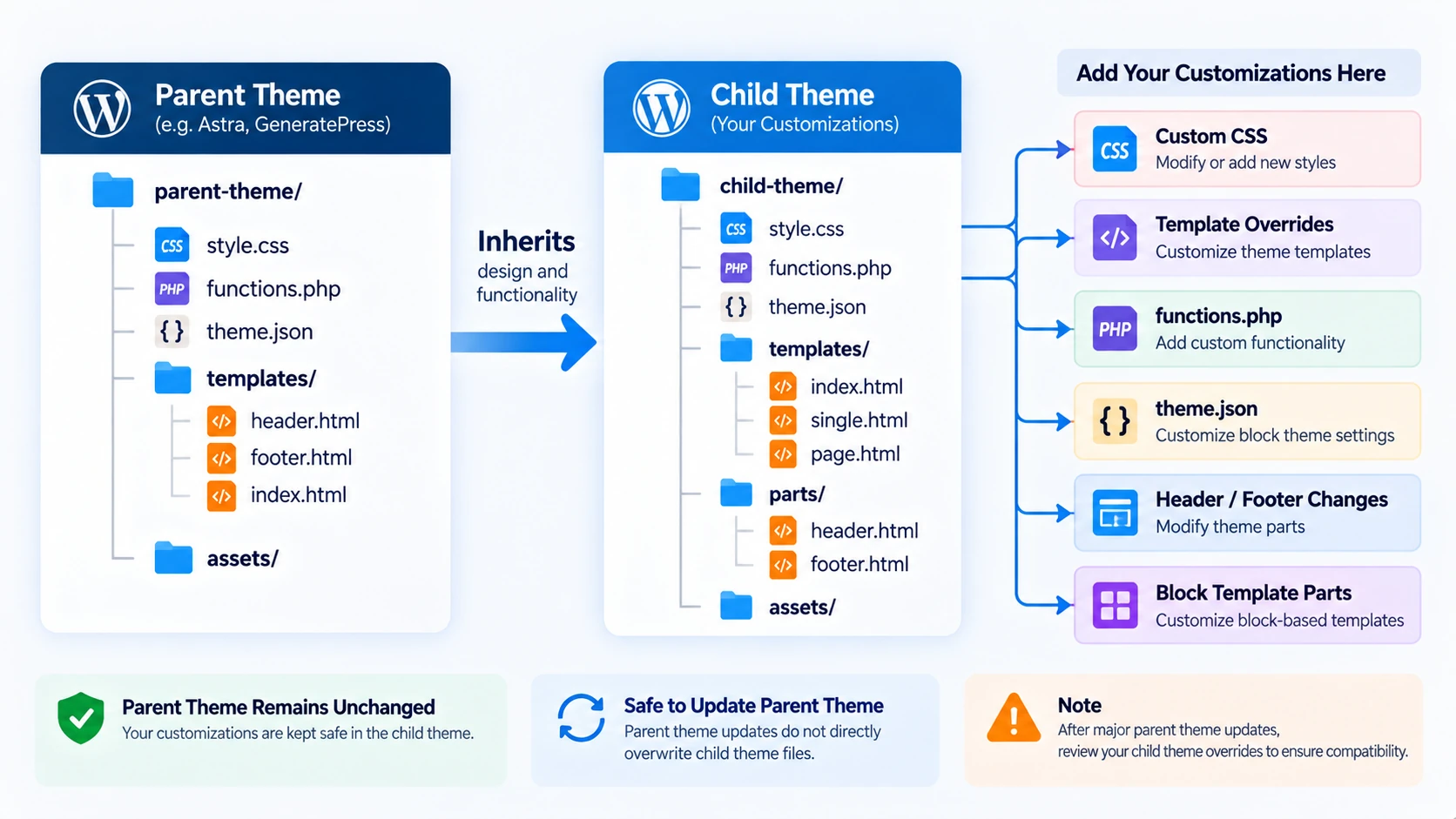
A WordPress child theme lets you customize an existing theme without directly changing the parent theme’s files. This is useful when you want to change styling, override templates, or add theme-specific code while keeping your customizations separate from future parent-theme updates.
The key idea is simple: the parent theme provides the base design and functionality, while the child theme adds or overrides only what you need.
That separation makes updates safer and maintenance easier.
In this guide, you will learn how to create a WordPress child theme manually, understand how parent and child themes work together, customize classic and block themes safely, troubleshoot common problems, and decide when a child theme is actually the right solution.
What Is a WordPress Child Theme?
A child theme is a WordPress theme that depends on another installed theme, called the parent theme. According to the WordPress Child Themes documentation, a child theme extends a parent theme and lets you customize it without directly editing the parent theme’s files.
Instead of rebuilding the entire theme, the child inherits the parts it does not define itself.
For example, a parent theme may already provide page layouts, typography, navigation, templates, responsive behavior, theme settings, and styling. Your child theme can then change only selected parts, such as colors, spacing, template layouts, header or footer markup, custom theme-specific PHP, block templates, or theme.json settings.
This approach keeps your custom work separate from the parent theme’s files.
What Is a Parent Theme?
The parent theme is the complete theme on which your child theme depends. A child theme extends it rather than replacing it completely. If the required parent theme is removed, the child theme can no longer rely on its templates, styles, and other inherited components.
Why Use a WordPress Child Theme?
The main benefit is separating your customizations from the parent theme.
If you directly edit a third-party theme’s style.css, functions.php, or template files, a later theme update can replace those original files and remove your changes.
A child theme avoids that problem by storing your changes in a separate theme directory. When the parent is updated, your child files normally remain untouched.
- easier maintenance
- cleaner custom code
- safer parent updates
- easier rollback
- clearer ownership of modifications
- simpler version control
- easier comparison between original and customized files
However, a child theme does not guarantee that every future parent update will remain compatible with your overrides. If the parent substantially changes a template or API that your child overrides, you may still need to update your child theme.
Think of child themes as update-resistant customization, not zero-maintenance customization.
When Should You Use a Child Theme?
A child theme is a good choice when an existing theme is already suitable but needs custom development.
- customizing a third-party theme
- changing template markup
- adding persistent theme-specific CSS
- modifying a header or footer
- overriding article layouts
- changing archive templates
- extending a client site’s existing theme
- adding theme-specific hooks or functions
A child theme is especially useful when you expect the parent theme to continue receiving updates.
When You Do Not Need a Child Theme
You Only Need a Small CSS Change
If the change is extremely small and your setup provides a safe persistent CSS location, creating an entire child theme may be unnecessary.
You Are Adding Site Functionality
A booking system, API integration, custom post type, or business rule should usually live in a plugin rather than a child theme. If the functionality should continue working after changing themes, it probably belongs in a plugin.
You Are Building a Completely Custom Theme
If you control the whole design and architecture, build a custom theme rather than creating a child of an unrelated parent.
The Site Editor Already Solves the Requirement
With some block themes, design changes made through the Site Editor may be enough. Use a child theme when you actually need file-level control or reusable theme customization.
Child Theme vs Parent Theme
| Parent Theme | Child Theme |
| Provides the base theme | Extends the parent |
| Works independently | Depends on the parent |
| Usually updated by its developer | Stores your customizations |
| Contains the main architecture | Overrides selected components |
| Can be replaced by an update | Child files remain separate |
The child does not need to duplicate the entire parent. In fact, copying unnecessary parent files into a child theme creates more maintenance work. Only override what you actually need.
Child Theme vs Custom Theme
| Use a Child Theme | Build a Custom Theme |
| Existing theme already fits most needs | Need complete design control |
| Limited or moderate customization | Unique architecture required |
| Parent features are useful | Parent theme creates limitations |
| Faster implementation | Full ownership of code |
| Depends on parent | Independent theme |
If you want to understand complete theme architecture, see our WordPress theme development guide.
Classic vs Block Child Themes
Classic Child Themes
Classic themes commonly use PHP templates, style.css, functions.php, hooks, JavaScript, and CSS.
career-blog-child/
├── style.css
├── functions.php
├── single.php
└── assets/
The child can override parent PHP templates by providing appropriately named files.
Block Child Themes
Block themes rely more heavily on block templates, template parts, theme.json, Site Editor functionality, and HTML-based theme files.
career-blog-child/
├── style.css
├── theme.json
├── templates/
├── parts/
└── patterns/
WordPress can inherit templates, parts, settings, and patterns from the parent when the child does not provide its own versions.
Important: if a template was customized and saved through the Site Editor, that database-saved version can take priority over the child-theme file. This is a common reason developers think a child template override is being ignored.
Which Should Beginners Learn?
Learn the approach used by the parent theme you actually need to customize. If your client site uses a classic theme, learn classic child-theme behavior. If it uses a modern block theme, understand block templates, theme.json, and the Site Editor. A professional WordPress developer should eventually understand both.
What You Need Before Creating a Child Theme
- the parent theme installed
- a local or staging WordPress environment
- a code editor
- access to wp-content/themes
- basic CSS knowledge
- basic PHP knowledge if working with classic themes
- a current backup
- preferably Git or another version-control workflow
Do not use a live production site as your main development environment.
Create a WordPress Child Theme Manually
We will create a simple example named Career Blog Child. The exact parent theme does not matter for understanding the process.
Step 1: Create the Child Theme Folder
wp-content/themes/
Create:
career-blog-child
Keep folder names lowercase and simple where possible.
Step 2: Create style.css
Inside the child folder, create style.css and add:
/*
Theme Name: Career Blog Child
Template: parent-theme-folder-name
Version: 1.0.0
Text Domain: career-blog-child
*/
The most important field for a child theme is Template:. This must point to the parent theme’s folder name, not necessarily the parent theme’s display name.
Template: example-parent
An incorrect Template value is one of the most common reasons WordPress reports a broken child theme.
Step 3: Activate the Child Theme
Open WordPress Admin → Appearance → Themes. Confirm that the parent theme remains installed, activate the child, then test the homepage, posts, pages, navigation, widgets or blocks, and mobile layout.
Step 4: Load Styles Correctly
Older tutorials often recommend CSS @import to load the parent stylesheet. Do not automatically follow that pattern.
Modern WordPress development generally uses the enqueue system when parent styles need to be explicitly loaded. But do not assume every parent theme needs its stylesheet manually enqueued. Some parent themes load both stylesheets, some only the parent, some only the active stylesheet, and some block themes may not rely on a traditional stylesheet at all.
<?php
function career_blog_child_styles() {
wp_enqueue_style(
‘career-blog-parent-style’,
get_parent_theme_file_uri( ‘style.css’ )
);
wp_enqueue_style(
‘career-blog-child-style’,
get_stylesheet_uri(),
array( ‘career-blog-parent-style’ ),
wp_get_theme()->get( ‘Version’ )
);
}
add_action( ‘wp_enqueue_scripts’, ‘career_blog_child_styles’ );
Inspect how the parent theme loads assets before adding duplicate CSS.
Step 5: Add functions.php
Create functions.php inside the child theme when you need child-specific PHP.
The child theme’s functions.php does not replace the parent’s functions.php. WordPress loads both, with the child file loading first.
Do not copy the parent’s entire functions.php into the child. Doing so can create duplicate function declarations and fatal errors.
<?php
function career_blog_child_setup() {
// Child-theme-specific setup.
}
add_action( ‘after_setup_theme’, ‘career_blog_child_setup’ );
For PHP-only files such as functions.php, omitting the closing ?> tag is standard practice and helps avoid accidental whitespace or output problems.
Step 6: Override a Parent Template
If a classic parent contains single.php and you need a different article layout, copy the relevant template into the child and modify the child version.
career-blog-child/
└── single.php
Do not copy every parent template just in case. Each copied file becomes something you may need to maintain.
After major parent updates, compare important overrides with their newer parent versions.
Step 7: Add Custom CSS
.site-title {
font-size: 2rem;
line-height: 1.2;
}
.entry-content {
max-width: 760px;
margin-inline: auto;
}
If you find yourself overriding hundreds of parent rules with !important, reconsider whether the parent is still the right foundation.
Step 8: Customize a Block Child Theme
Block child themes can override templates, template parts, patterns, and global style configuration. Template parts should normally live in the /parts/ directory. For block themes, the official WordPress Templates documentation explains that WordPress checks user-saved templates first, then child-theme templates, and then parent-theme templates.
If the parent contains templates/single.html, a child theme can provide its own file with the same template name when a custom single-post layout is needed.
Remember that Site Editor customizations saved in the database can override file-based templates, so troubleshoot there as well if a file change does not appear.
Step 9: Use theme.json in a Child Theme
A child theme can provide its own theme.json configuration that participates in WordPress’s global styles and settings hierarchy, allowing child-level customization of inherited design settings.
{
“version”: 3,
“settings”: {
“layout”: {
“contentSize”: “760px”,
“wideSize”: “1200px”
}
}
}
Do not copy a huge parent theme.json unless you genuinely need to maintain all of it. Prefer overriding only what is necessary.
Step 10: Test the Child Theme
- homepage
- posts
- pages
- category archives
- search
- 404 page
- desktop
- tablet
- mobile
- navigation
- typography
- images
- tables
- PHP warnings
- browser console
- missing CSS or JavaScript
- broken template paths
Then test a parent-theme update on a staging or local environment. This is the real proof that your customization workflow is maintainable.
What Happens When the Parent Theme Updates?
Normally, updating the parent does not delete files stored inside your child theme. That is the main reason child themes exist.
However, compatibility can still change. A parent update may change HTML structure, rename CSS classes, change hooks, redesign templates, remove functions, or alter template parts.
A safer workflow is:
- Back up the site.
- Update the parent in staging.
- Test child templates.
- Test CSS.
- Check PHP and JavaScript errors.
- Review important parent changes.
- Deploy after verification.
Common WordPress Child Theme Mistakes
Wrong Template Value
Template: must match the parent directory name.
Parent Theme Missing
The child depends on its parent, so keep the parent installed.
Editing the Parent Anyway
Once the child exists, store intended customizations there instead of continuing to modify parent files.
Using Old @import Advice Blindly
Understand how the specific parent loads styles.
Copying Too Many Templates
Override only what you need.
Putting Site Functionality in the Child Theme
Portable business logic belongs in a plugin.
Ignoring Parent Updates
Child files survive updates, but compatibility still requires testing.
Developing Directly on Production
A broken PHP file can affect the live site immediately.
WordPress Child Theme Best Practices
- keep overrides minimal
- document important changes
- use Git where possible
- test parent updates in staging
- keep functionality in plugins when appropriate
- prefix PHP functions
- avoid direct parent edits
- compare overridden templates after major updates
- keep backups
- remove obsolete overrides
How to Create a Child Theme With WP-CLI
Developers who use WP-CLI can scaffold a child theme from the command line.
wp scaffold child-theme
You can review the official WP-CLI child-theme command documentation for available options such as parent theme, theme name, author, and automatic activation.
wp scaffold child-theme career-blog-child –parent_theme=parent-theme-folder
The manual process is still worth learning because it teaches you how the relationship actually works.
How to Troubleshoot a Child Theme
Child Theme Does Not Appear
- correct folder
- valid style.css
- Theme Name
- file permissions
Broken Theme or Missing Parent
- parent theme installed
- Template spelling
- parent folder name
CSS Does Not Load
- enqueue logic
- stylesheet URL
- caching
- CSS specificity
- whether the parent already handles the child stylesheet
Template Override Does Not Work
- filename
- folder structure
- whether the parent is block or classic
- whether another template has priority
- whether a Site Editor version is overriding the file
Changes Seem to Disappear
- browser/server cache
- whether you accidentally edited the parent
- whether Site Editor changes are stored separately from files
- whether the correct child theme is active
Child Theme or Plugin: Where Should Custom Code Go?
Use the child theme for presentation-related changes such as styling, templates, article layouts, header/footer changes, and theme-specific display behavior.
Use a plugin for custom post types, business logic, API integrations, booking systems, reusable site features, and functionality that should survive a theme change.
If you want to learn that side, see our WordPress plugin development guide.
WordPress Child Theme Checklist
- ☐ Parent theme installed
- ☐ Child folder created
- ☐ style.css created
- ☐ Template value correct
- ☐ Child theme appears in WordPress
- ☐ Child theme activates successfully
- ☐ Parent styles work
- ☐ Child styles work
- ☐ functions.php has no errors
- ☐ Template overrides work
- ☐ Mobile layout tested
- ☐ PHP errors checked
- ☐ Browser console checked
- ☐ Parent update tested in staging
- ☐ Backup or Git available
Frequently Asked Questions
What is a WordPress child theme?
A child theme is a theme that inherits from another installed theme and allows you to store customizations separately from the parent.
Do I need a child theme?
Use one when you need file-level customization of an existing theme that will continue receiving updates. Small CSS changes or plugin-type functionality may not require one.
Does a child theme work without the parent theme?
Normally, no. It depends on the parent identified by the Template field.
Will a child theme stop updates from removing my changes?
Parent updates normally do not overwrite files inside your child theme. However, updates can still create compatibility issues with overridden templates or dependent code.
Can I create a child theme without a plugin?
Yes. Creating the folder and required theme files manually is a standard method.
Should I use a child theme with a block theme?
Yes, when file-based overrides or reusable theme-level customizations are needed. Block themes can inherit templates, parts, patterns, and design configuration from their parent.
Does a child theme need functions.php?
Not necessarily. Add it only when you need PHP-based theme customization.
What does Template mean in style.css?
It identifies the directory name of the parent theme that the child depends on.
Can I update the parent after creating a child theme?
Yes. That is one of the main reasons to use a child theme. Test important updates because compatibility changes are still possible.
Is a child theme better than a custom theme?
Neither is universally better. Use a child theme when an existing parent already solves most of the project. Build a custom theme when you need full ownership of the design and architecture.
Final Thoughts
A WordPress child theme is most useful when you already have a solid parent theme and need custom control without editing that parent’s files directly. Keep the child focused. Add only the styles, templates, configuration, and theme-specific code you actually need.
Do not copy the whole parent theme into the child, and do not move portable business functionality into theme files simply because functions.php can execute PHP.
The strongest workflow is: Parent theme for the foundation → child theme for targeted presentation customization → plugins for portable functionality. Once that separation becomes clear, child themes become much easier to build, maintain, test, and update.
