
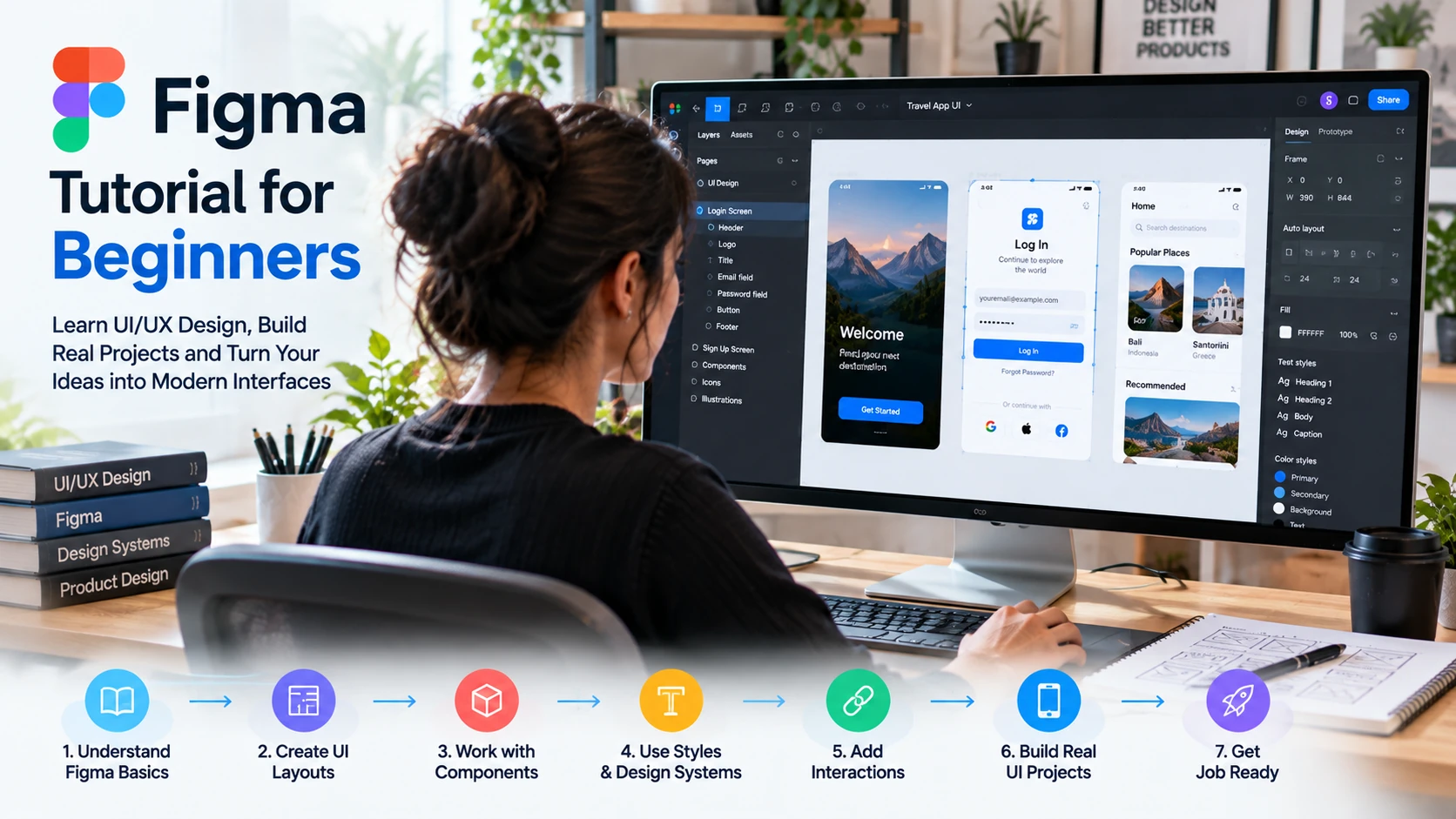
Figma is easier to learn when you use it to complete a small design instead of memorizing every button in the interface. A beginner does not need to master plugins, complex design systems, or advanced prototyping on day one. You need to understand the workspace, create a frame, arrange content, reuse components, and connect screens into a simple prototype.
This Figma tutorial for beginners follows that practical sequence. You will learn the core interface and then use a simple mobile login flow to understand frames, layers, typography, auto layout, components, variants, prototyping, and developer handoff. The same fundamentals can later be applied to websites, dashboards, and larger product designs.
The objective is not only to learn Figma. It is to understand why a designer structures an interface in a particular way and how that structure makes a design easier to revise, test, and communicate.
What Is Figma and What Is It Used For?
Figma is a collaborative product-design platform used for interface design, prototyping, design systems, feedback, and design-to-development workflows. Designers can create mobile screens, website layouts, dashboards, wireframes, interactive prototypes, and reusable interface systems in shared files.
Figma’s own beginner learning course teaches the product through practical design concepts rather than treating the interface as an isolated collection of tools. That is also the approach used in this guide.
Figma is the tool, however; it does not replace UI/UX fundamentals. Typography, hierarchy, spacing, accessibility, user flows, and usability still determine whether a design works.
Set Up Figma and Understand the Workspace
A practical Figma tutorial for beginners should start with the workspace before moving into advanced design features. Learn where the canvas, layers, properties, assets, and creation controls are used so later exercises feel easier to follow.
| Workspace Area | What It Does |
| Canvas | The working area where frames and design objects are placed. |
| Layers panel | Shows the hierarchy of frames, groups, text, components, and other objects. |
| Properties | Controls the selected object’s layout, size, appearance, typography, and other settings. |
| Assets / libraries | Provides reusable components and resources available to the file. |
| Toolbar and creation controls | Lets you select, create frames, draw shapes, add text, and access other creation actions. |
Before designing, practice selecting an object, changing a property, renaming a layer, duplicating it, and undoing the change. These small actions make the later workflow much easier.
Figma Tutorial for Beginners: Core Concepts You Should Know
Frames and Layers
A frame is a container used for a screen, page section, component, or layout. Layers are the objects inside your design. Name important frames and layers by purpose—such as Login Screen, Email Field, or Primary Button—instead of leaving a large file full of generic names.
Typography, Color, Spacing, and Alignment
Visual hierarchy tells the user what to notice first. Use a small, consistent type scale, readable contrast, predictable spacing, and alignment. Avoid choosing a new font size, radius, or gap for every object. Consistency is more useful than decorative variety.
Auto Layout
Auto layout helps frames respond to their contents through direction, spacing, padding, sizing, and alignment rules. Beginners should learn it early because buttons, cards, navigation items, forms, and many responsive interface patterns become easier to maintain when layout behavior is defined instead of manually positioning every object.
Components and Variants
Components turn repeated interface elements into reusable building blocks. Create a component for something that should remain consistent, such as a button or form field. Variants can represent related states or options—such as default and disabled buttons—without creating unrelated copies.
Prototypes
A prototype connects frames and interactions so you can simulate a user flow. A beginner does not need elaborate animation. Start by connecting a button on one screen to the next screen and preview the flow.
Build Your First UI in Figma: A Simple Login Flow
Use this exercise to learn the complete beginner workflow. Create two mobile frames: a login screen and a simple home screen. The goal is not to produce a portfolio masterpiece; it is to understand how the features work together.
Step 1 — Define the User Flow
Write the flow before styling: the user sees a login form, enters information, selects the primary action, and reaches the home screen. This keeps the design focused on a task rather than decoration.
Step 2 — Create the Frames and Wireframe
Create two mobile-sized frames using an appropriate preset or dimensions for your exercise. On the login frame, place rough blocks for a heading, two input fields, a primary button, and a secondary action. Keep the wireframe simple and grayscale. At this stage, check hierarchy and spacing rather than colors.
Step 3 — Add Typography and Visual Style
Replace placeholders with realistic labels such as Email, Password, and Sign in. Choose a limited type scale and a small color palette. Check that the primary action is visually clear and that text remains readable against its background.
Step 4 — Use Auto Layout
Apply auto layout to the form stack so the fields and button keep consistent spacing. Apply it inside the button so padding remains stable if the label changes. Resize the frame or edit text to observe whether the layout behaves as expected.
Step 5 — Create Reusable Components
Turn the primary button and input field into components. Create only states you actually need for the exercise. The purpose is to learn reuse and consistency, not to build a huge design system before finishing one screen.
Step 6 — Connect the Prototype
Switch to prototyping and connect the sign-in action to the home frame. Preview the flow and check whether the interaction is obvious. Figma’s prototyping documentation can be used when you need to explore more interaction options.
Step 7 — Review the Design Like a User
- Can you identify the primary action immediately?
- Are labels clear without extra explanation?
- Is spacing consistent between related elements?
- Does the screen still work if a label becomes longer?
- Are repeated elements actually reusable?
- Does the prototype follow the intended user flow?
Fix the problems you find before adding more visual polish. Iteration is part of the design process, not evidence that the first design failed.
From Beginner File to a Professional Figma Workflow
As projects become larger, organize files around a repeatable process: understand the problem, map the user flow, create wireframes, design the interface, build reusable patterns, prototype important interactions, collect feedback, revise, and prepare the work for development.
Use Components and Variables With a Purpose
Reusable components are valuable when multiple screens share the same pattern. Variables can support reusable design values and modes, but beginners should first understand the design decision they are standardizing. Do not create a complex system simply because the feature exists.
Design for Different Content and Screen Sizes
Test longer text, shorter text, empty states, and different frame widths. Auto layout and constraints can help, but responsive design still requires decisions about what should grow, wrap, stack, hide, or remain fixed.
Prepare for Developer Handoff
A useful handoff explains behavior and intent, not just measurements. Keep components organized, use understandable names, clarify states and assets, and discuss ambiguous behavior with developers. Figma’s Dev Mode resources cover the design-to-development workflow as the product evolves.
Beginner Figma Projects to Practice
The best way to use a Figma tutorial for beginners is to turn individual features into small complete projects. Start with a simple login flow or landing page, then move toward dashboards and multi-screen mobile interfaces.
| Project | Main Skills | Good Completion Evidence |
| Login / signup flow | Frames, forms, auto layout, components | Working prototype with clear states |
| Landing page | Hierarchy, typography, spacing, sections | Desktop layout plus a smaller-screen adaptation |
| Dashboard | Grids, cards, components, data hierarchy | Reusable card system and organized layout |
| Mobile app flow | User flow, components, prototyping | Several connected screens solving one task |
| Small e-commerce flow | Lists, product details, navigation, checkout flow | Documented flow from browsing to a key action |
For portfolio work, explain the problem, intended user, constraints, important decisions, iterations, and final result. Do not present a copied community file or tutorial outcome as original client work.
Figma vs Photoshop, Illustrator, and Sketch
These tools overlap in some areas but are not interchangeable. Figma is centered on collaborative interface and product-design workflows. Photoshop is primarily associated with raster image editing, while Illustrator is designed around vector graphics and illustration. Sketch is another interface-design product. Choose based on the work you need to produce rather than trying to learn every design application at once.
What to Learn After the Figma Basics
Once you can build and prototype a clean interface, improve the design knowledge behind the tool:
- Typography and visual hierarchy
- Color, contrast, and accessibility
- Spacing and layout systems
- User flows and information architecture
- User research and usability testing
- Responsive interface design
- Design systems and component thinking
- Basic HTML/CSS concepts and developer communication
This is where a beginner moves from operating Figma to making better product-design decisions. If you want to understand how these design skills connect to a broader creative career, explore our graphic design career path guide for fundamentals, portfolio development, tools, and career preparation.
A Practical Four-Week Figma Learning Plan
This Figma tutorial for beginners can also be followed as a simple four-week learning sequence. Use the schedule as a practical example rather than a guaranteed mastery timeline, and spend longer on any skill that still feels unclear.
| Week | Focus | Outcome |
| 1 | Workspace, frames, layers, text, shapes, spacing | Recreate a simple screen from observation |
| 2 | Auto layout, components, variants | Build reusable form and card patterns |
| 3 | User flows and prototyping | Create a connected multi-screen prototype |
| 4 | Responsive review, handoff, portfolio explanation | Polish one project and document your decisions |
Common Figma Mistakes Beginners Should Avoid
- Memorizing shortcuts without understanding layout and hierarchy.
- Positioning every element manually instead of learning layout behavior.
- Creating components for everything before knowing what actually repeats.
- Copying attractive screens without understanding the user problem.
- Ignoring accessibility, long content, error states, and different screen sizes.
- Building isolated screens instead of a complete user flow.
- Using inconsistent spacing, typography, naming, and component states.
Frequently Asked Questions
Is Figma easy to learn for beginners?
The basic interface can be learned relatively quickly, but strong UI work also requires design fundamentals and repeated practice. A small start-to-finish project is a better first goal than trying to learn every feature.
Can I learn Figma without design experience?
Yes. You can learn the tool from zero, but combine tool practice with typography, hierarchy, spacing, accessibility, user flows, and usability principles.
Is Figma free for beginners?
Figma offers a Starter plan, but plan features and limits can change. Check Figma’s current official pricing and plan information before relying on a specific limit.
Should I learn Figma before UI/UX design?
Learn them together. Figma gives you a place to practice, while UI/UX principles explain why one design decision may work better than another.
What Figma projects should a beginner build?
Start with a small login flow or landing page, then build a dashboard or multi-screen mobile flow. Focus on complete flows, reusable elements, and explaining your decisions.
How long does it take to learn Figma?
There is no universal timeline. Tool familiarity may come quickly, while confident product-design work requires more practice. Measure progress by the designs you can structure, prototype, revise, and explain independently.
Final Thoughts
A useful Figma tutorial for beginners should lead to a working design, not just a tour of the interface. Learn frames and layers, build a simple wireframe, use auto layout, turn repeated elements into components, connect a prototype, and review the result as a user.
After that, deepen the design skills behind the tool. Figma becomes more valuable when you can explain the user problem, structure a consistent interface, respond to feedback, and communicate the design clearly to other people.
